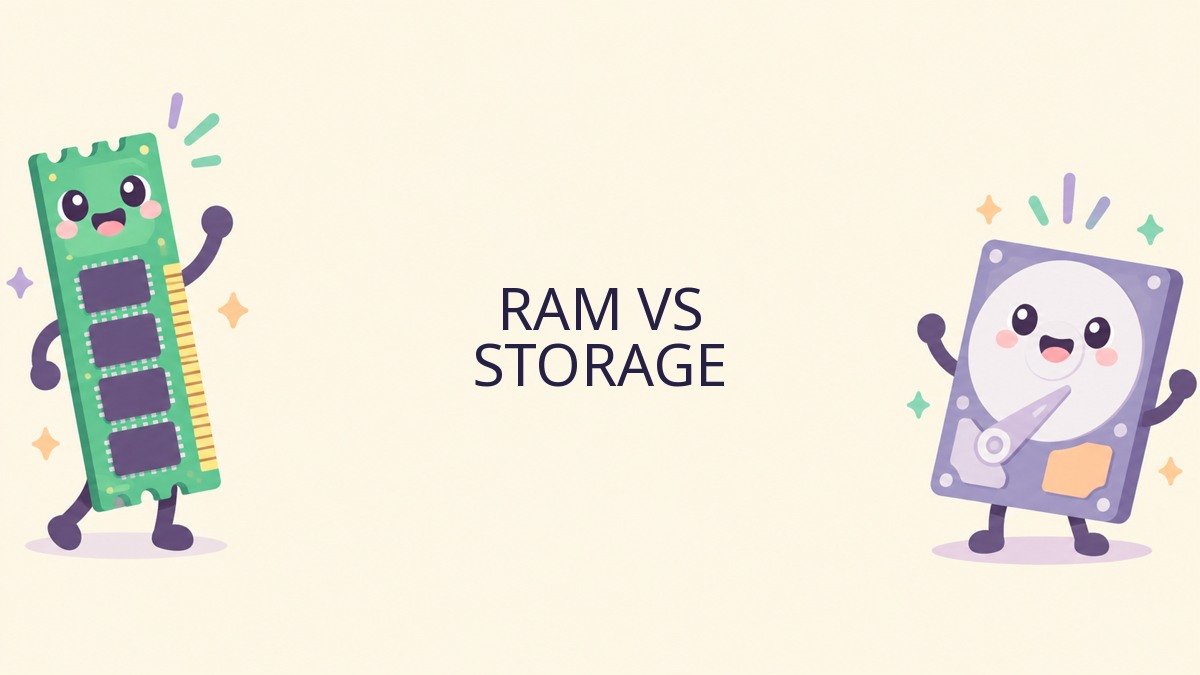
RAM vs Storage: What Your Computer Actually Needs
When a computer feels slow or runs out of room, advice often mentions “memory.” Unfortunately, people use that word for two different things: RAM and storage. Adding more of one does not automatically solve a shortage of the other.
RAM is the working space a device uses while programs are running. Storage holds files and applications for later use. This guide explains the difference, shows how each affects everyday tasks and helps you decide what to check before spending money on an upgrade.
RAM: working memory for active tasks
RAM stands for random-access memory. The operating system and running applications use it to hold data they need to work with quickly. When you open a browser, edit a photo or join a video call, the device uses some of its available RAM to support those tasks.
Ordinary RAM is volatile: its contents do not persist in the same way as saved files when the device loses power. That is why you should save a document rather than assuming the open version in memory is a permanent copy. Some apps offer autosave or recovery features, but their behavior varies.
More RAM can help when your workload regularly exceeds the available amount. It does not make every task faster, and it cannot repair a slow internet connection, a failing drive or an overheating computer. The right amount depends on the operating system, applications and how many tasks you run together.
Storage: a place for saved data
Storage holds the operating system, installed apps and files such as documents, photographs and videos. Common storage devices include solid-state drives (SSDs) and hard disk drives (HDDs). Data on these devices is intended to remain when the computer is turned off.
Storage capacity determines how much data you can keep on the device. Storage speed affects how quickly the system can read and write data. An SSD often provides faster access than a traditional HDD, but actual performance depends on the device and workload.
Cloud storage is another location for data, reached through a service. A file shown in a synced folder may be stored locally, remotely or both, depending on settings. Cloud sync does not automatically provide an independent backup of every file.
A simple desk analogy
Imagine a desk and a filing cabinet. RAM is like the desk space where you place the materials you are using now. Storage is like the cabinet where you keep folders between work sessions. A larger desk can help you work with more materials at once; a larger cabinet holds more folders.
The analogy has limits. Computers manage memory and storage automatically in ways a physical desk does not. Still, it captures the key difference: the amount of room for active work and the amount of room for saved files are related to different components.
If the cabinet is full, increasing desk space does not create more filing room. If the desk is crowded, buying a larger cabinet may not solve the immediate workspace problem. Diagnose the actual constraint before choosing a solution.
What happens when you open an app?
The app’s files are stored on a drive. When you launch it, the operating system loads the necessary instructions and data into memory and schedules the processor to run them. As you work, the app may read more data from storage or save changes back to the drive.
If several large apps run at once, they compete for memory and processor resources. The operating system may use a portion of storage as virtual memory when needed. Storage is generally slower than RAM, so heavy memory pressure can make switching between tasks feel sluggish.
This is a simplified explanation: modern systems use caches and other techniques to manage resources. The useful lesson is that a slowdown can have several causes, and one specification rarely tells the whole story.
Signs you may need more RAM
A device may benefit from more RAM if it becomes slow primarily when many apps, browser tabs or large projects are open, while behaving reasonably with a lighter workload. An app may report insufficient memory, or the operating system’s resource monitor may show sustained memory pressure during the task.
These signs are not conclusive. A poorly behaving app, malware, overheating or a slow drive can produce similar symptoms. Restart the device, update supported software and test a normal workload. Use the built-in resource monitor to observe memory use rather than relying only on the number of open tabs.
Before upgrading, check whether the device’s RAM can be expanded. Some laptops and many phones have memory that is not intended for user replacement. Confirm compatible capacity and module type in the manufacturer’s documentation, and consider professional installation if required.
Signs you may need more storage
Warnings that the disk is full, failed downloads due to insufficient space, or an inability to install updates can indicate a storage-capacity problem. Check the operating system’s storage report to see which categories are using space.
Look for large videos, downloads, duplicate files or apps you no longer use. Delete or move items only after checking them, and maintain a separate backup of anything important. Do not erase unfamiliar system folders to free space quickly; that can make the device unusable.
If your files are still growing, a larger internal drive, external storage or an appropriate cloud plan may help. Remember that moving your only copy to an external drive does not create a backup. Keep another independent copy of valuable files.
Capacity and speed are separate questions
RAM and storage are both measured in units such as gigabytes, which adds to the confusion. A computer might have a relatively small amount of RAM and a much larger storage drive. The two numbers describe different resources and should not be added together as if they were interchangeable.
A larger storage drive is not automatically faster. Likewise, more RAM is not necessarily the most important improvement if the existing amount is already sufficient for your tasks. Processor performance, storage type, software and cooling all influence the experience.
For a new computer, compare the complete configuration. Check the minimum and recommended requirements of the applications you actually use, whether memory or storage can be upgraded and how long the device is expected to receive support. Leave some room for future needs without assuming that the most expensive configuration is always necessary.
How to check your device
- Find installed memory. Open the system information or settings page for your operating system and note the amount of RAM.
- Check available storage. Use the system’s storage view to see the drive’s capacity and free space.
- Observe a real workload. Open the apps you normally use and inspect the built-in resource monitor for sustained memory, processor or disk activity.
- Note the symptoms. Is the problem lack of space, slow startup, a single app or many tasks at once?
- Check support and compatibility. Consult the manufacturer before buying components or changing hardware.
- Back up first. Verify an independent backup before any repair, migration or major cleanup.
Names of monitoring tools differ across operating systems. A momentary spike is not necessarily a problem; look for a pattern while the slowdown occurs. If you are unsure how to interpret a reading, share the observations with a trusted technician rather than making random changes.
Examples: which resource matters?
A full photo library: If the computer reports very little free disk space because of photos and videos, storage capacity and a backup plan are the immediate issues. More RAM will not create space for new files.
Many applications at once: If a device slows only when a video call, large spreadsheet and many browser tabs are open, memory pressure may be one factor. Check the resource monitor and app requirements before deciding on more RAM.
Slow startup on an older computer: A slow HDD can contribute to long startup and loading times. A compatible SSD may help, but check the device’s overall condition, supported OS and upgrade options first.
Slow website on one connection: If a site is slow on several devices using the same network, the connection or service may be involved. Neither RAM nor drive capacity is the first thing to replace.
Virtual memory and why it matters
Operating systems can use storage as part of a virtual-memory system. This helps manage memory when active demands are high, but heavy reliance on storage for memory-related work can be slower than keeping data in RAM. The exact behavior differs by operating system and configuration.
Do not change advanced virtual-memory settings simply because a generic article recommends it. Most people should use the system’s default management unless the manufacturer or a qualified administrator gives device-specific guidance. Incorrect changes can cause instability or make troubleshooting harder.
Free storage space can matter for normal operation and updates, but leaving space on a drive is not the same as adding physical RAM. Check both resources separately.
Before buying or upgrading
Start with the problem and the workload. Read the device manufacturer’s specifications for supported memory and storage, including whether components are replaceable. Some devices use specific module types or have limits on capacity. A part that looks similar is not necessarily compatible.
Consider the cost of the upgrade relative to the device’s age, battery condition, support status and overall performance. If the operating system is no longer supported or the hardware has multiple problems, replacement may be more sensible than a single upgrade.
Back up important files and test restoration before opening the device or replacing a drive. Follow safety and warranty guidance. If you do not have the tools or experience, use a qualified repair professional.
Frequently asked questions
Will adding RAM give me more room for photos?
No. Photos are stored on a drive or another storage service. More RAM can help with active photo editing, but it does not increase storage capacity.
Will a larger SSD always fix a slow computer?
No. An SSD can improve some loading and file-access tasks, especially compared with a slow HDD, but a slowdown can have other causes. Diagnose the workload first.
Is cloud storage the same as RAM?
No. Cloud storage is a remote place to keep files. RAM is working memory on the device. A cloud service’s performance also depends on connectivity and its configuration.
How much RAM does everyone need?
There is no single number for every person. Requirements change with operating systems and applications. Check the software you use, your multitasking habits and whether the device can be upgraded later.
Make the next decision simpler
When you see a warning or slowdown, ask whether the problem is space for saved files or resources for active work. Check storage and memory separately, observe the issue during a normal task and verify compatibility before buying. A tested backup remains important regardless of which component you change.
Further reading: consult the current support documentation for your device and applications. For recovery planning, see CISA’s ransomware guide.